

Why File Setup Errors Tank Order Acceptance
Print shop owners leave revenue on the table from large format jobs—banners, trade show displays, yard signs, window graphics—when clients submit files that can't go to press. These aren't rare technical glitches. They're the same three preventable mistakes: incorrect color profiles, missing bleed margins, and improper resolution settings.
Every rejected file triggers a revision cycle. Your production team stops work, contacts the client, explains the problem, waits for a corrected version, and re-evaluates the file. Meanwhile, your schedule slips. The client grows frustrated. Your margin shrinks because the job takes twice as long as you quoted.
File diagnostics from established print operations reveal a pattern. Color profile mismatches account for the majority of rework hours, followed closely by resolution errors that surface only during RIP processing. Bleed margin problems create the most visible client friction because they require design changes rather than simple export adjustments.
This isn't a technical problem that requires hiring specialists. It's a workflow problem that systematic intake standards can solve. When your file acceptance criteria catch these three errors before production starts, jobs move from order to print without delay.
The Three Critical File Setup Errors
Walk into any print shop during a large format rush, and you'll hear the same frustration: a banner file arrives looking perfect on screen, but the color profile is RGB instead of CMYK. The banner prints with a noticeable green shift. The client rejects it. Your team reprints on your dime, losing both material cost and the production window you'd scheduled for the next job.
Three file errors account for the majority of large format rejections. And each one has a diagnostic signature your intake process can catch before the file reaches your printer.
Color Profile Mismatches
Clients submit files in RGB color space because that's what their screen displays. Large format printers operate in CMYK. When an RGB file hits a CMYK printer without conversion, blues shift purple, bright greens turn muddy, and reds lose their punch. The client sees one thing on their monitor. You print something noticeably different.
The fix: enforce CMYK color space for all large format files at intake. Train your front counter staff to check the color mode in the file properties before accepting the job. If the file arrives in RGB, convert it using your design software and send a proof to the client for approval before printing. This single checkpoint prevents the majority of color-related reprints.
Missing or Incorrect Bleed Margins
Bleed margins extend the design past the final trim line, preventing white edges when the material shifts slightly during cutting. Clients design to exact dimensions without bleed because they don't understand how commercial cutting works. When your trimmer shifts by even an eighth of an inch, a white line appears along one edge.
Require a minimum 0.25-inch bleed on all sides for banners and posters. For larger installations like building wraps, increase bleed to 0.5 inches. Your intake checklist should verify bleed measurements before the file enters production. Catching a missing bleed at the counter takes two minutes. Reprinting a 10-foot banner takes hours.
Resolution and DPI Errors
A file that looks sharp on a laptop screen pixelates when printed at banner scale. Clients assume 72 DPI web graphics will work for a six-foot trade show display. They won't. At large format sizes, inadequate resolution becomes immediately visible as jagged edges and blurry text.
Set a minimum resolution standard of 150 DPI for large format work, scaling to 300 DPI for viewing distances under three feet. Check the effective resolution by dividing the image pixel dimensions by the final print dimensions in inches. A 1500-pixel-wide image printed at 10 inches wide yields 150 DPI. Printed at 20 inches, it drops to 75 DPI and fails quality standards. Reject files that don't meet your threshold before they consume press time.
Color Profile Mismatch Details
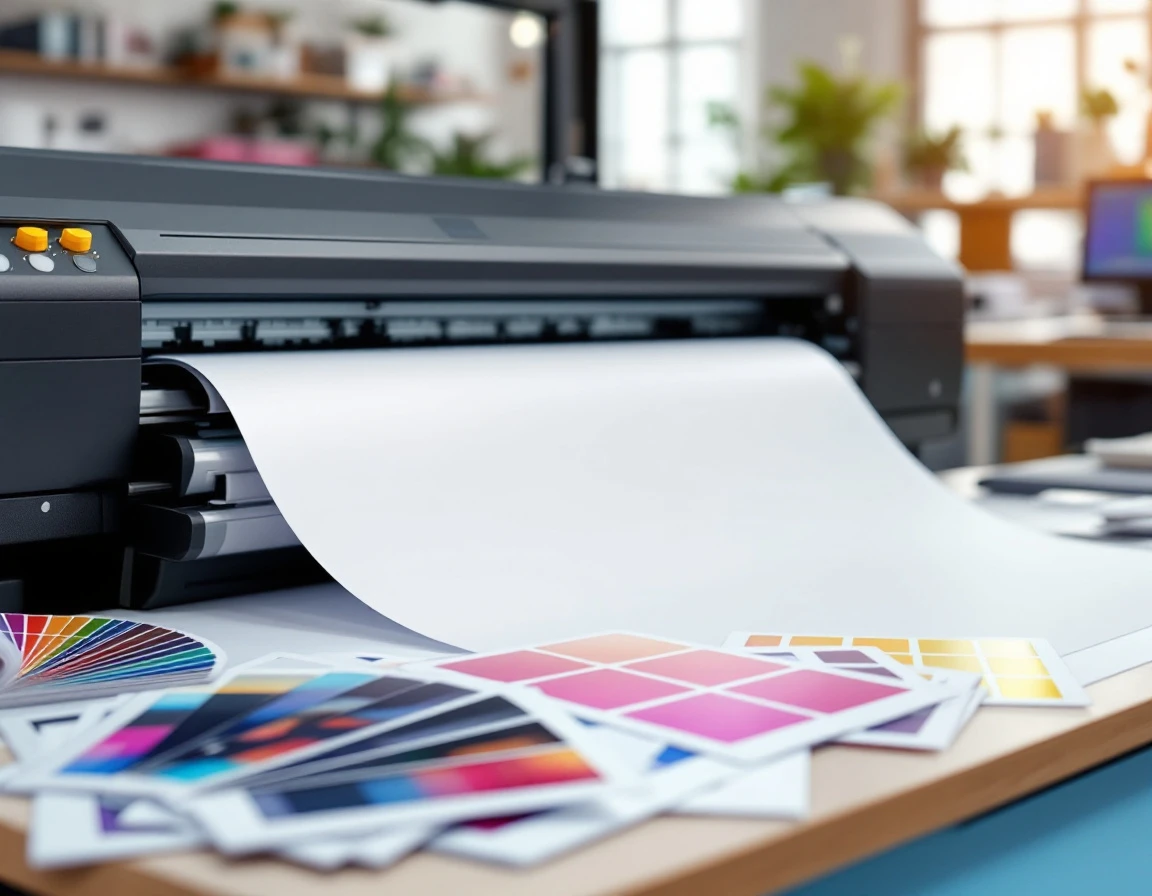
Color profile mismatches account for more large format rejections than any other file error. Clients design on RGB monitors and submit files in Adobe RGB or Display P3 color spaces, expecting their vibrant screen preview to translate directly to print. When RGB files hit a CMYK printer without conversion, the output shifts toward dull, oversaturated, or unpredictable tones — blues turn purple, bright greens muddy, and skin tones look sickly.
The second-order problem emerges when clients embed ICC profiles that conflict with your RIP equipment settings. A file tagged with a custom profile forces your production system into guesswork, attempting to reconcile incompatible color instructions. This creates a 30-minute production delay while staff strips profiles, converts color spaces, and reprints test panels.
The fix takes two minutes at intake: require CMYK files with no embedded profiles, or have clients declare their source profile when placing the order. This single checkpoint eliminates the most common rejection cycle in large format work.
Bleed and Safety Margin Failures
Bleed and safety margin errors account for the second-highest rejection rate in large format work. Bleed refers to artwork that extends beyond the trim edge—typically 0.125 inches for standard prints—preventing white borders when the trimmer blade shifts slightly. The safety zone is the protected area inside the trim line, usually 0.5 inches for large banners, where critical content must stay to avoid being cut during trimming or folding.
A client submits a 3×6-foot banner design with contact information positioned one-quarter inch from the edge. Your intake staff must reject the file, explain the safety zone requirement, and wait for the client to reposition the text and resubmit. This exchange consumes hours or days while the production slot sits empty.
Run this diagnostic checklist during file intake:
- Does artwork extend past the trim line on all sides?
- Is all text, logos, and critical content at least 0.5 inches from every edge?

Resolution and File Format Standards
Large format printing demands 240–300 DPI for banners and close-viewing materials, while signage viewed from 10 feet or more can work at 150 DPI. The viewing distance determines resolution needs: a banner viewed from across a trade show floor tolerates lower resolution than a tabletop display examined from two feet away. Clients accustomed to web design frequently export at 72 DPI because screen graphics look sharp on monitors, but that same file pixelates visibly when printed at banner scale.
File format compatibility issues halt production just as often as resolution problems. RIP software reliably processes PDF, TIFF, and EPS files. But struggles with native Photoshop variants containing unmerged layers or unflattened Illustrator files with live effects. These format mismatches trigger error messages that stop the queue until someone exports a clean version.
The intake diagnostic takes one minute: open the file properties to confirm resolution matches the final print dimensions, verify the format is PDF or TIFF, and check that CMYK color mode is active with fonts embedded or converted to outlines. Request clients deliver PDFs exported at final size rather than native design files. This brief inspection prevents the two-hour production hold that happens when a file reaches the RIP station and fails processing, forcing staff to contact the client, wait for revisions, and restart the workflow.
Automating File Review to Eliminate Rejection
The most effective way to stop file errors from reaching your production floor is to catch them at the intake stage—before your staff opens files, before your RIP software processes them, and before your printers sit idle waiting for corrections. Automated pre-flight systems check color profiles, resolution, bleed margins, and safety zones in seconds, giving clients immediate pass/fail feedback and clear instructions for corrections. This shift moves file validation out of your production workflow and into your intake process, where it belongs.
Autonomous content publishing systems integrate directly with your client-facing upload portals. Customers submit their design files, the system validates specifications against your shop standards (CMYK color mode, 300 DPI resolution, 0.125" bleed, 0.25" safety zone), and clients receive instant feedback. Files that meet spec flow directly to your production queue. Files that fail validation trigger automated messages with specific correction instructions—"Your file is in RGB color mode and requires conversion to CMYK" or "Resolution is 150 DPI; increase to 300 DPI for print quality." Clients fix issues on their end, resubmit, and you never spend production time reviewing or revising.
This workflow layer doesn't require replacing your existing printers or RIP software. It sits between your ordering system and production queue, filtering out non-compliant files before they consume setup time. Your production staff stays focused on printing—not rejecting jobs, not requesting revisions, not explaining color space conversions over the phone. The result: you recover the time currently lost to rejection cycles and keep revenue-generating equipment running.
Implementing File Standards and Next Steps
Start by creating a one-page client handout titled "Large Format File Requirements" that specifies:
- CMYK color mode
- 300 DPI resolution
- 0.125" bleed margins
- 0.5" safety zones for text and logos
Add a pre-flight validation step to your intake workflow. Train counter staff to check color mode, resolution, and bleed settings on every file before accepting the job. Flag non-compliant files immediately and request corrections before production begins. For higher-volume shops, explore workflow automation systems that validate specifications automatically and generate client-facing reports.
Track rejection rates by error type for three months. Identify whether color profiles, bleed margins, or resolution issues consume the most rework time at your shop, then prioritize training and client education on that specific error. This data shows which improvements deliver the highest return.
Shops that enforce file standards recover the production capacity and margins currently lost to revision cycles—without purchasing new equipment or hiring additional staff. Learn more about avoiding large format print errors or schedule a demo to see how ParcelPuffin's workflow management tools automate file validation at intake.